
Joy Learn
Fun, voiced lessons across many primary school subjects for children aged 6 to 8, with Sparky the Star as their guide. On Android phones and tablets, and on Windows computers.
- Ages 6–8
- No ads
- No in-app purchases
- Works offline
- No account needed
- Developer
- School360
- Category
- Education
- Made for
- Children aged about 6 to 8
- Platforms
- Android · Windows 10 and 11
- Ads and purchases
- None
- Account
- Not required
About Joy Learn
Primary school learning that feels like an adventure
Sparky the Star, a friendly talking mascot, guides children through short, colourful lessons with stories, animations and hands-on activities, and cheers them on every step of the way. Each lesson takes about 8 to 10 minutes, just right for young attention spans.
Many subjects
Each subject is its own colourful world, split into topics and short lessons that follow the school curriculum.
Organised by grade
Every child's profile is set to their grade, so they see the lessons that match what they learn at school.
Growing all the time
New subjects, topics and lessons arrive as free updates. Topics not ready yet are clearly marked "Coming soon".
Features
Built for young learners
Everything is read aloud, so children who are still building their reading can follow along, and every lesson ends with a celebration.
Sparky reads every lesson
Each idea is explained out loud with a picture or an animated scene.
Learn by doing
Multiple choice, true or false, matching, sorting, drag and drop, card games, "pick all that apply" and identification keys.
Gentle help
Hints are always one tap away, and a wrong answer gets a kind "let's try again".
Stars, points and badges
Every finished lesson earns stars, points, a badge and a little celebration.
A path that feels like a game
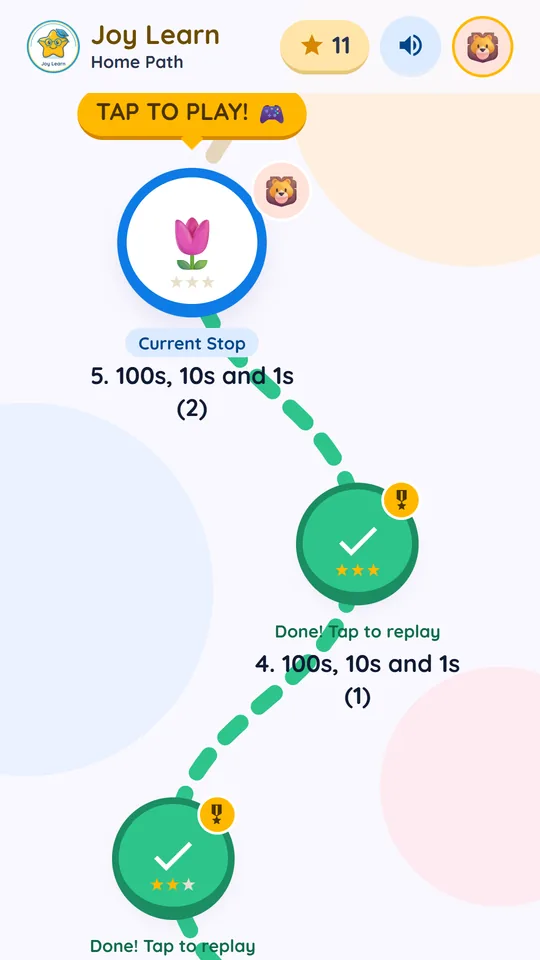
Each topic is a path of stepping stones. Finishing a lesson unlocks the next, and a treasure chest waits at the end.
Several children, one device
Each child gets their own profile, avatar, grade and progress.
Parent Corner
Lessons finished, stars, accuracy, time spent, streaks, a weekly goal, strengths and topics to practise.
Learn offline
Download only the topics your children need; lessons then work without internet.
How a lesson works
From "hello" to a new badge in about ten minutes
Tap any screen to see it full size.
App screens
See Joy Learn in action
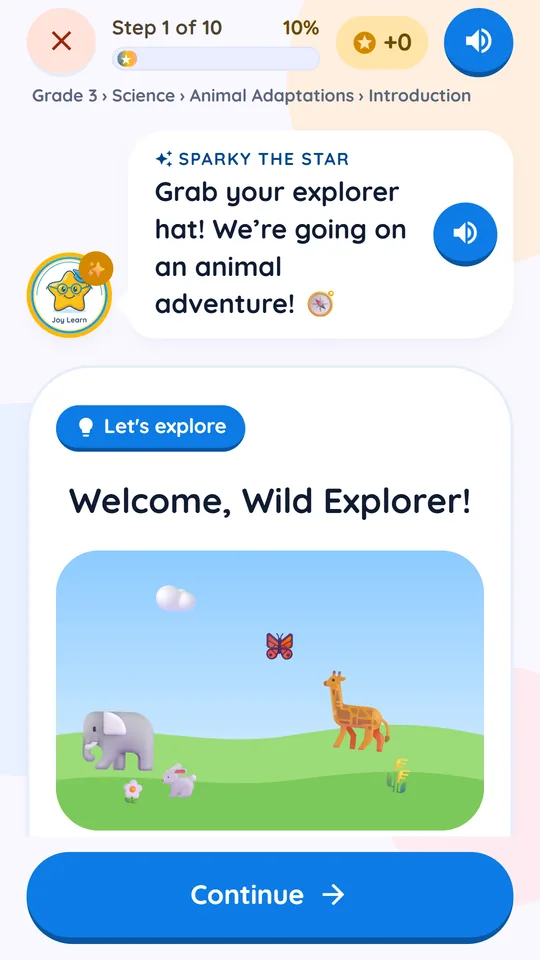
Real screens from the app, shown with two sample children, Leo and Maya. The Android and Windows apps share the same lessons and design; on Windows the layout widens to fit the screen.
Get the app
One app for phones, tablets and computers
The same lessons, profiles and Parent Corner on Android and Windows. With optional cloud backup, a child can start on a tablet and carry on at the computer.
Android
Phones and tablets, from Google Play.
- Install: search "Joy Learn" on Google Play, or use the button at the top of this page. Package name com.school360.joylearn .
- First launch: tap Skip for now to start without an account, or sign in with Google to turn on backup.
- Permissions: the camera or photo library is requested only when a parent taps "Take photo" or "Choose photo" for a child's profile picture. Internet is used to download lesson packs and for the optional backup.
- Sharing: achievement pictures use the phone's normal share menu.
- Uninstall: removing the app deletes everything stored on the device.
Windows
Maths and science learning for children aged about 6 to 8, guided by Sparky.
Windows 10 and 11 (64-bit) · Version 1.0.12 · Updated 17 October 2026. Microsoft Store listing and installer download links are awaiting release.
- Install: planned channels are the Microsoft Store or Joy-Learn-Setup-1.0.12.exe. Release links are not yet available. Installing for the current user needs no administrator rights.
- First launch: open Joy Learn from the Start menu or desktop shortcut and choose Skip for now. You can turn on cloud backup later.
- No camera: "Take photo" and "Choose photo" both open the Windows file picker.
- Sharing: achievement pictures are saved to your Downloads folder and shown in File Explorer.
- Keys: F11 toggles full screen, Ctrl + R reloads the app.
Windows system requirements
| Minimum | Recommended | |
|---|---|---|
| Windows | Windows 10 or 11, 64-bit | Windows 11, 64-bit |
| Processor | 64-bit (x64) dual-core, 1.6 GHz | 64-bit (x64) quad-core, 2 GHz |
| Memory | 2 GB | 4 GB |
| Graphics | Integrated graphics | Integrated graphics with hardware acceleration |
| Disk space | About 1 GB, including downloaded lesson packs | About 1 GB |
| Internet | Only to download lesson packs and for cloud backup | Broadband |
| Other | Speakers or headphones for the voice-over. No camera, microphone or dedicated graphics card is needed. | |
Installing and updating on Windows
The installer lets you pick the folder and adds Start menu and desktop shortcuts. For a silent install with no windows or questions, for example from a script or device-management tool, run Joy-Learn-Setup-1.0.12.exe /S, adding /D=C:\Path\To\Folder as the last option to choose the folder. Installing a newer version over an existing one upgrades it in place and keeps children and progress; if Joy Learn is open, the installer closes it first. The installer does not use the network and never needs a restart.
Installer exit codes
Installation tools such as the Microsoft Store or device-management software can use these exit codes to tell what happened. All files are included in the installer. Because it does not use the network, never needs a restart and upgrades existing installations in place, there are no separate codes for those cases.
| Code | Meaning | What to do |
|---|---|---|
| 0 | Installation successful | Nothing. Joy Learn is ready to open. |
| 1 | Installation cancelled by the user | Run the installer again when ready. |
| 2 | Installation failed for another reason | Restart the computer and try again. If it keeps failing, contact us. |
| 112 | Not enough disk space ( ERROR_DISK_FULL ) | Free up space on the install drive, or choose another drive, then try again. |
| 1618 | Another Joy Learn installation is already running ( ERROR_INSTALL_ALREADY_RUNNING ) | Wait for the other installer to finish, then try again. |
Cloud backup and restore on Windows
In the Parent Corner, choose to sign in with Google. Google's sign-in page opens in your normal web browser; after signing in, close the browser tab and return to Joy Learn. On a new computer, choose Already using JoyLearn? Restore on first launch and sign in with the same Google account. Signing out stops backups and keeps everything on this computer.
Uninstalling on Windows
Open Settings → Apps → Installed apps , find Joy Learn and choose Uninstall . Children and progress are kept in %APPDATA%\School360 JoyLearn so they come back if you reinstall. To remove them too, delete that folder after uninstalling.
Android and Windows at a glance
| Android | Windows | |
|---|---|---|
| Devices | Phones and tablets | PCs and laptops, Windows 10 or 11, 64-bit |
| Get it from | Google Play | Microsoft Store or setup file (release links pending) |
| Lessons, profiles, Parent Corner | The same on both | |
| Child's photo | Camera or photo library, asked only when used | Windows file picker; the camera is never used |
| Google sign-in (optional) | Inside the app | Opens in your web browser, then returns to the app |
| Achievement picture | Phone share menu | Saved to Downloads |
| Data on uninstall | Deleted with the app | Kept in %APPDATA%\School360 JoyLearn until you delete it |
For parents and teachers
Grown-ups stay in charge
A grown-up should help set up Joy Learn the first time. After that, the Parent Corner, protected by a grown-ups-only maths question, holds everything that isn't for children.
Getting started
- Open Joy Learn and choose Skip for now .
- On Who's learning? , add a child with a name, nickname, grade and an avatar or photo.
- Pick a subject and a topic, then open a lesson.
Progress reports
Lessons finished, stars, how often answers were right the first time, time spent, streaks, a weekly goal, strengths and topics that need more practice.
Lesson packs
Download the voice-over for the topics your children are learning. Remove finished grades to free space; stars and progress are always kept.
Cloud backup (optional)
Sign in with a parent's Google account to keep progress safe and carry it across phones, tablets and computers. On a new device, choose Already using JoyLearn? Restore . Sign out at any time.
Safe and calm
Designed for children, checked for families
- No ads
- No in-app purchases
- No analytics, crash reporting or tracking
- No chat, social features or open links for children
- Children are never asked for information
- A child's photo never leaves the device
- No location, advertising ID or microphone
- Parents can delete their cloud data and account at any time
Questions
Frequently asked questions
Do I need an account to use Joy Learn?
No. Choose "Skip for now" on the first screen and everything works on the device. A parent's Google account is only needed for the optional cloud backup.
Does Joy Learn work without internet?
Yes, once a topic's lesson pack has been downloaded in the Parent Corner. Internet is only needed for those downloads and for cloud backup.
Which ages and grades is it for?
Children aged about 6 to 8. Lessons are organised by grade and subject, and each child's profile is set to their own grade.
Can brothers and sisters share one device?
Yes. Add each child on the "Who's learning?" screen. Each has their own profile, grade, stars and progress.
Can progress move between my phone and my computer?
Yes, with cloud backup on. Sign in with the same Google account on both, and choose "Already using JoyLearn? Restore" on the new device.
There is no voice in a lesson. What should I do?
Download that topic's lesson pack in the Parent Corner, and check that the device's sound is on.
What should I do if a lesson pack download fails on Windows?
Check the internet connection and try again. Lesson packs come from Google's servers at firebasestorage.googleapis.com.
Windows says "Windows protected your PC" when I run the installer.
This can appear for installers downloaded outside the Microsoft Store. Choose More info → Run anyway , or install from the Microsoft Store instead.
Sign-in on Windows does not finish.
Make sure Google's sign-in page opened in your web browser and that you completed it within five minutes. If a firewall blocks local connections to 127.0.0.1 , allow Joy Learn and try again.
Privacy policy
Joy Learn app by School360 · Effective 17 October 2026
- Joy Learn has no ads, no in-app purchases, no analytics and no tracking.
- Without cloud backup, everything stays on the device.
- If a parent turns on cloud backup with their Google account, we store each child's name, nickname, avatar, grade and lesson progress so it can be restored on other devices.
- A child's photo never leaves the device.
- We never sell or share this information, and a parent can delete it at any time.
This policy explains what information the Joy Learn app ("Joy Learn", "the app") collects, why, and the choices parents have. It applies to Joy Learn on Android, iOS and Windows. Joy Learn is made by School360 ("we", "us") for children aged about 6 to 8 and the parents or teachers who set it up for them.
Information stored only on the device
When a grown-up sets up the app, they enter each child's name, a nickname, a grade and either an avatar or a photo. As the child plays, the app records lesson progress: which lessons were finished, stars and points, how long a lesson took and which questions needed another try. Downloaded lesson audio is also stored on the device.
All of this is saved in the app's private storage on the device. On a phone or tablet it is removed when the app is uninstalled. On Windows it is kept in the app's folder in your user profile ( %APPDATA%\School360 JoyLearn ) and stays there after uninstalling, so the children and progress come back if the app is reinstalled; delete that folder to remove it. On every device, removing a child in the app deletes their details and progress.
Photos. If a parent takes or chooses a photo of their child, it is copied into the app's private storage and is never uploaded to us or anyone else. On a phone or tablet, the app asks for camera or photo access only when the parent taps "Take photo" or "Choose photo". On Windows, both options open the normal Windows file picker, and the app does not use the camera.
Cloud backup (optional, parents only)
Parents can sign in with their Google account to back up progress and use it on other phones, tablets or computers. The app works fully without it. Signing in is done by the parent; the app asks a grown-up to help, and the Parent Corner is protected by a grown-ups-only maths question. On Windows, Google's sign-in page opens in the computer's normal web browser and then returns to the app.
When a parent signs in, the following is stored in Google Firebase, which we use as our cloud service provider:
| Information | Why |
|---|---|
| Parent's Google account name, email address and profile picture link, and a Firebase user ID | To sign the parent in and keep each family's data separate |
| Each child's name, nickname, avatar emoji and grade | To show the same children on every device |
| Lesson progress: lessons started and finished, stars, points, time spent, the last 10 attempts at each lesson and how many tries each question took | To continue where the child left off and to show the parent's progress report |
Each family's data can be read and changed only by the parent who is signed in. Nobody else, including other families, can see it. Data is encrypted while it travels between the device and Google's servers.
Lesson downloads
Lesson audio is downloaded from Google Cloud Storage. These downloads do not include any information about the child or the parent. As with any internet request, Google's servers see the device's IP address.
Services we use
- Google Sign-In and Firebase Authentication (Google LLC): optional parent sign-in. Google receives the device's IP address and technical details to protect accounts. Google Privacy Policy .
- Cloud Firestore (Google LLC): stores the cloud backup described above.
- Google Cloud Storage (Google LLC): hosts lesson audio downloads.
Google processes this information for us under the Firebase Data Processing Terms . Google's servers may be outside Sri Lanka.
Joy Learn does not use advertising, analytics, crash reporting, telemetry or tracking services, does not collect an advertising ID or location, and does not use the microphone.
What we do not do
- We do not show ads or sell information.
- We do not share information with anyone except Google as our service provider.
- We do not let children chat, post or contact anyone through the app.
- We do not use children's information for marketing or profiling.
Sharing achievements
In the Parent Corner a parent can create an achievement picture with their child's nickname and progress. On a phone or tablet it is sent using the device's normal share menu; on Windows it is saved to the Downloads folder. The app does not send it anywhere; the parent chooses what to do with it.
Children's privacy
Joy Learn is designed for children and follows the children's privacy rules of the app stores it is offered in. Children are not asked for any information. Information about a child is entered by a parent or teacher, and cloud backup needs a parent's Google account. If you believe a child has given us information without a parent's involvement, contact us and we will delete it.
Deleting your data
In the app
- Remove a child: tap the pencil on the child's card, then remove them. Their details and progress are deleted from the device and, if cloud backup is on, from the cloud (an empty marker with no name stays so other devices know to remove the child too).
- Delete everything in the cloud: Parent Corner → Cloud backup → Delete cloud data . This deletes every child and all progress stored in the cloud, and the Joy Learn sign-in account itself. Progress on the device stays until the app is uninstalled (on Windows, until the %APPDATA%\School360 JoyLearn folder is deleted).
- Signing out stops backups but does not delete anything.
Without the app
Email apps@school360.lk from the Google account you signed in with, with the subject "Joy Learn data deletion". We will delete your family's cloud data and sign-in account within 30 days and confirm by email. We keep nothing afterwards.
How long we keep information
Cloud backup data is kept while the parent's Joy Learn account exists and is deleted when the parent deletes it as described above. We do not keep backup copies of deleted data.
Changes to this policy
If we change what the app collects, we will update this page and the effective date before the new version of the app is released.
Support
We're happy to help
Questions, feedback, support or privacy requests: email apps@school360.lk .
apps@school360.lk